![LOGO.svg]](https://help.communityphone.org/hubfs/LOGO.svg)
Steps to Check Your Past Invoices
-
Login to Your Community Phone Dashboard
- Visit the Community Phone dashboard.
- Enter your email address and password to sign in.
-
Navigate to Billing
- On the main dashboard page, locate and click on the Billing section.
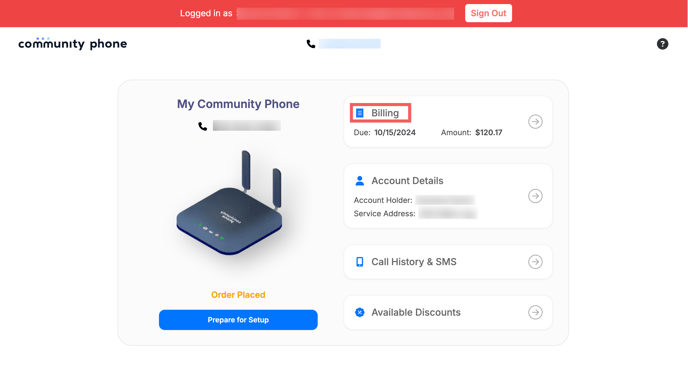
- This will take you to your billing and payment history.
- On the main dashboard page, locate and click on the Billing section.
-
View Past Invoices
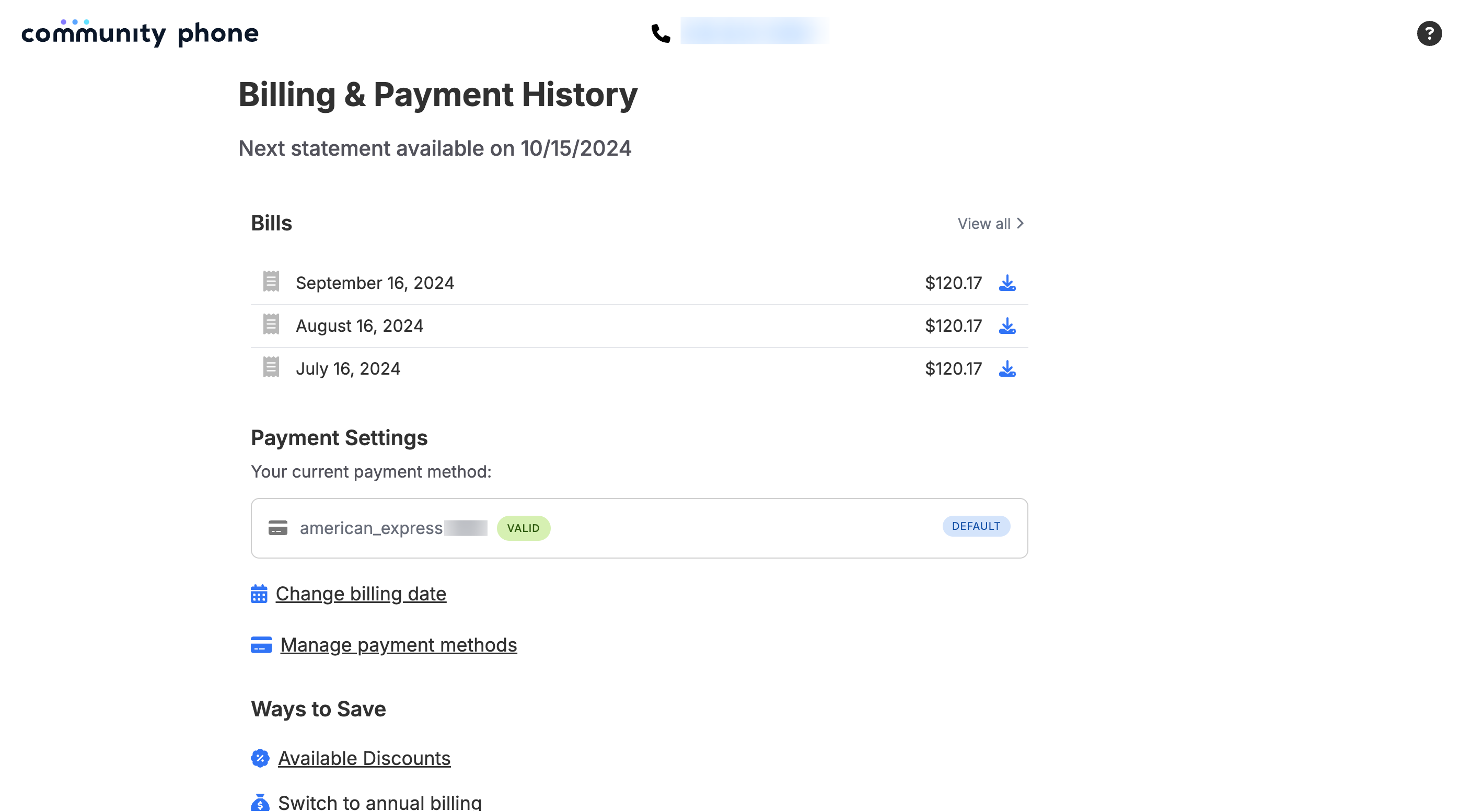
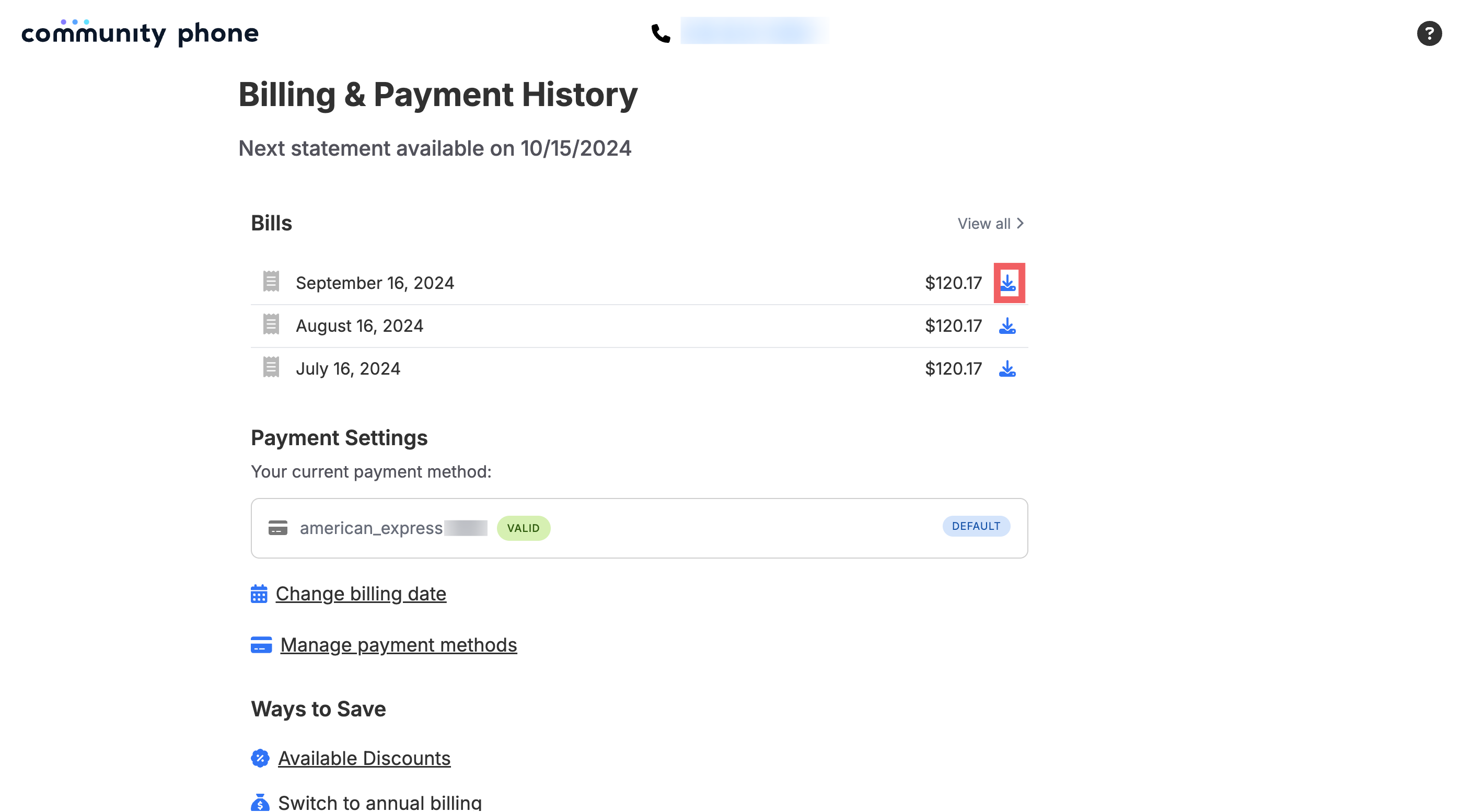
- Under the Bills section, you will find a list of your past three invoices, including the date billed and the amount charged.
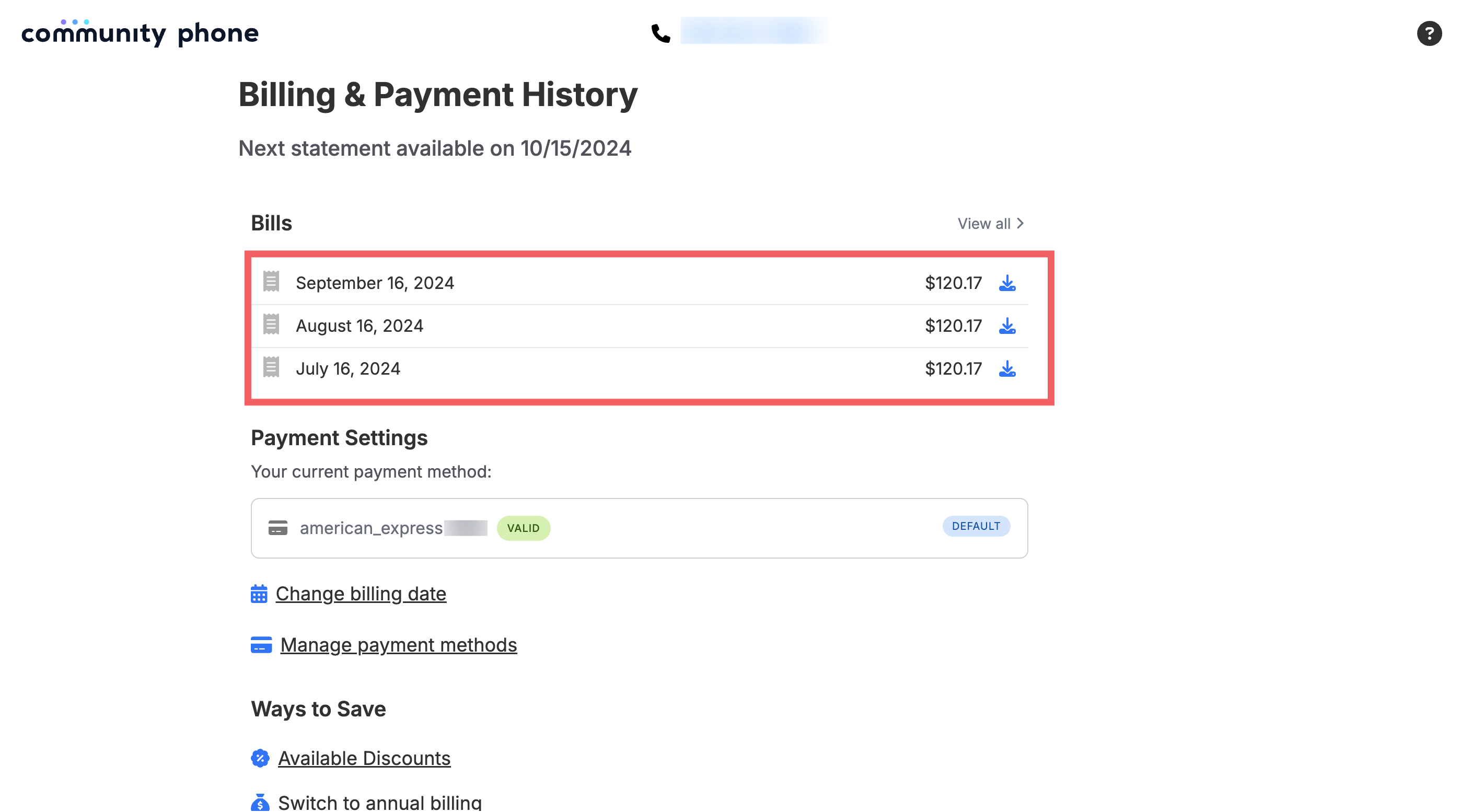
- If you wish to see older invoices, select View All to access more records.
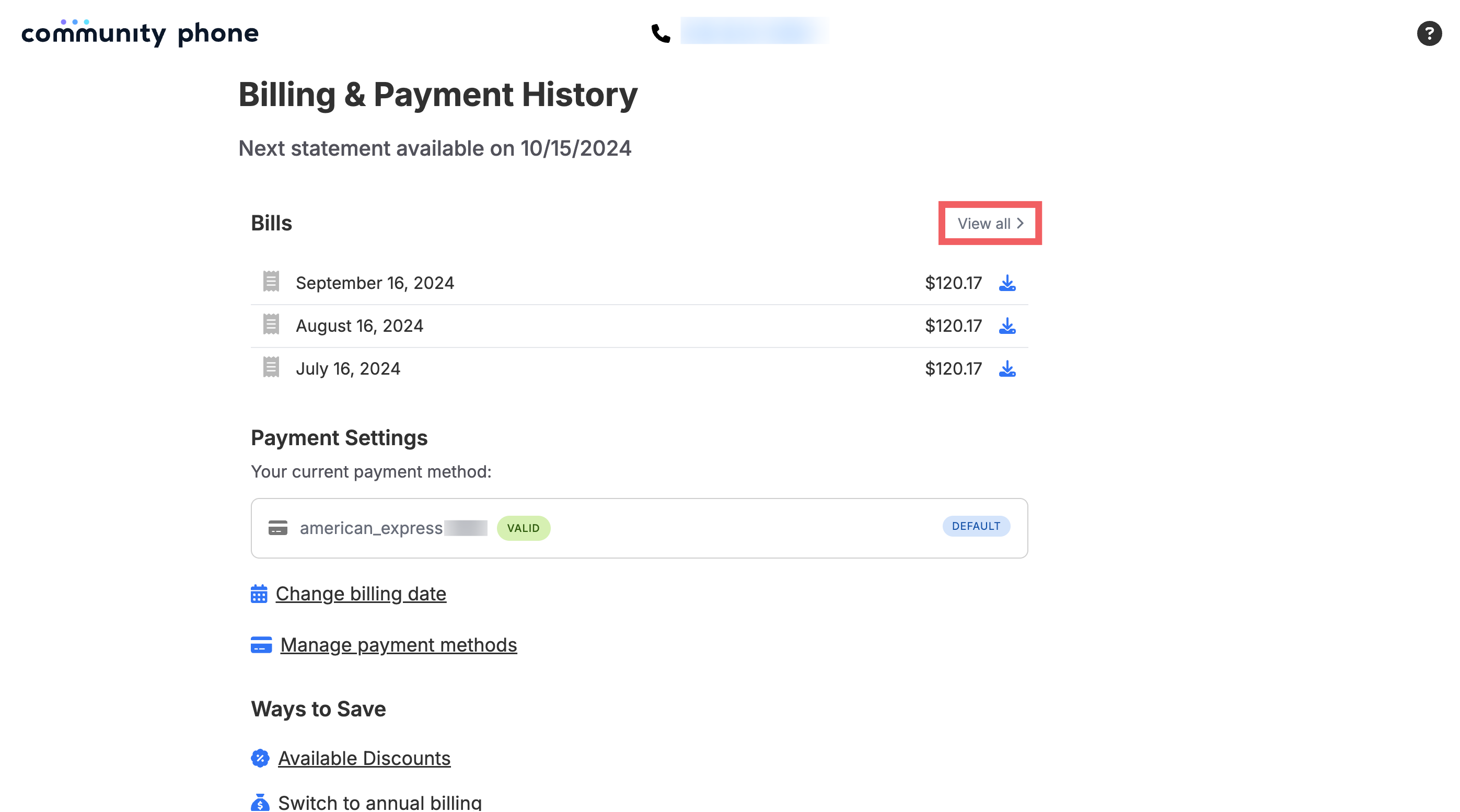
- Under the Bills section, you will find a list of your past three invoices, including the date billed and the amount charged.
-
Download Invoices
- Next to each invoice amount, there will be an option to Download the bill for your records.
- Next to each invoice amount, there will be an option to Download the bill for your records.
By following these steps, you can easily view and download your past invoices.